


Accessing Private Kubernetes Clusters Through a Bastion Host with Lens
When you are working with Kubernetes in production, security best practices dictate that your cluster’s API server should not be exposed to the public internet. A private cluster will keep your control plane accessible only from within your VPC, reducing your attack surface, but creating a new challenge: how do you manage a cluster that you can’t directly reach from your computer.
The simple answer to this question is using a bastion host, and in this post, we’ll explore two methods for connecting Lens Kubernetes IDE to a private cluster using it via SSH tunneling and SOCKS proxy.
Understanding the architecture
In a typical private cluster you have the following components:
- A K8s cluster with its API server endpoint accessible only within the VPC
- Worker nodes that run in private subnets and have no public IP addresses
- A bastion host in a public subnet that can reach both the internet and your private resources
Your local machine can easily SSH into the bastion host, and the bastion can reach the Kubernetes cluster. The goal in this case would be to bridge the gap so you can easily use Lens to communicate with your cluster as if it were directly accessible.
You will need the following components:
- A private Kubernetes cluster (EKS, AKS, GKE, or even a self-managed one)
- A bastion host that you can easily access, and that also has access to your cluster
- Lens installed on your local machine
- A valid
kubeconfigfile for your cluster - The cluster’s private API endpoint URL
For this example, we will leverage an AWS EKS cluster, but the steps will be similar to other clusters as well.
Getting the AWS EKS kubeconfig
To get an AWS EKS kubeconfig you can simply run the following command:
aws eks update-kubeconfig --name your_cluster_name --region your_cluster_region
Alternatively, by using Lens, you can easily leverage our one click AWS integration as shown here.
Connecting to the private cluster
Regardless of the cloud provider you might use, both the methods that will be described in the next section will let you connect to a private cluster.
Method 1: SSH Tunnel
SSH tunneling creates a direct encrypted connection between a port on your local machine and the Kubernetes API endpoint. To setup a tunnel open a terminal a run the following command:
ssh -L 6443:your-cluster-api-endpoint:443\
ec2-user@bastion-public-ip \
-N
The -L option creates the tunnel and listens on local port 6443 and forwards the traffic to the cluster endpoint on port 443.
With the tunnel active, you need to modify the kubeconfig to route traffic through it. To do that, open your kubeconfig file and locate your cluster.
You will need to first change the server to https://127.0.0.1:6443.
There is one catch, however, the cluster’s TLS certificate was issued for the actual API endpoint hostname of your cluster, not 127.0.0.1. To ensure this work you can either:
- Add a new option to the cluster to skip certificate validation:
insecure-skip-tls-verify: true, and remove the certificate-authority-data entry - Or you can add an entry to your
/etc/hostsfile mapping the original hostname to localhost, and then use that particular hostname inside yourkubeconfig, preserving certificate validation
Now, by opening Lens, you will see that you’ll have full access to your cluster’s resources, and everything else that Lens has to offer.
This option might seem simpler for a single cluster, but if you are using multiple, you will need a separate tunnel for each, and you’ll most likely encounter TLS certificate warnings that require workarounds.
Method 2: SOCKS Proxy
By using a SOCKS proxy, you create a dynamic tunnel that can route traffic to any destination the bastion can reach. Rather than mapping one local port to a single remote endpoint, you easily configure applications to send all their traffic through the proxy, and the bastion handles the routing. By leveraging this method, you can easily access multiple clusters, all through a single SSH connection.
You can create the dynamic tunnel by using:
ssh -D 1080 \
user@ip \
-N
Unlike the simple SSH tunnel method, you don’t need to modify the kubeconfig at all, and certificate validation works correctly because you’re connecting to the real hostname.
The only thing you need to do is make Lens aware about your SOCKS proxy, and this can be done by either using an environment variable (HTTPS_PROXY) when opening Lens, setting your operating system’s proxy setting to use the SOCKS proxy, or you can configure the proxy directly in the Lens app.
To add proxy settings for a Kubernetes cluster, you can right click on the cluster in Lens and select Show Cluster Settings.
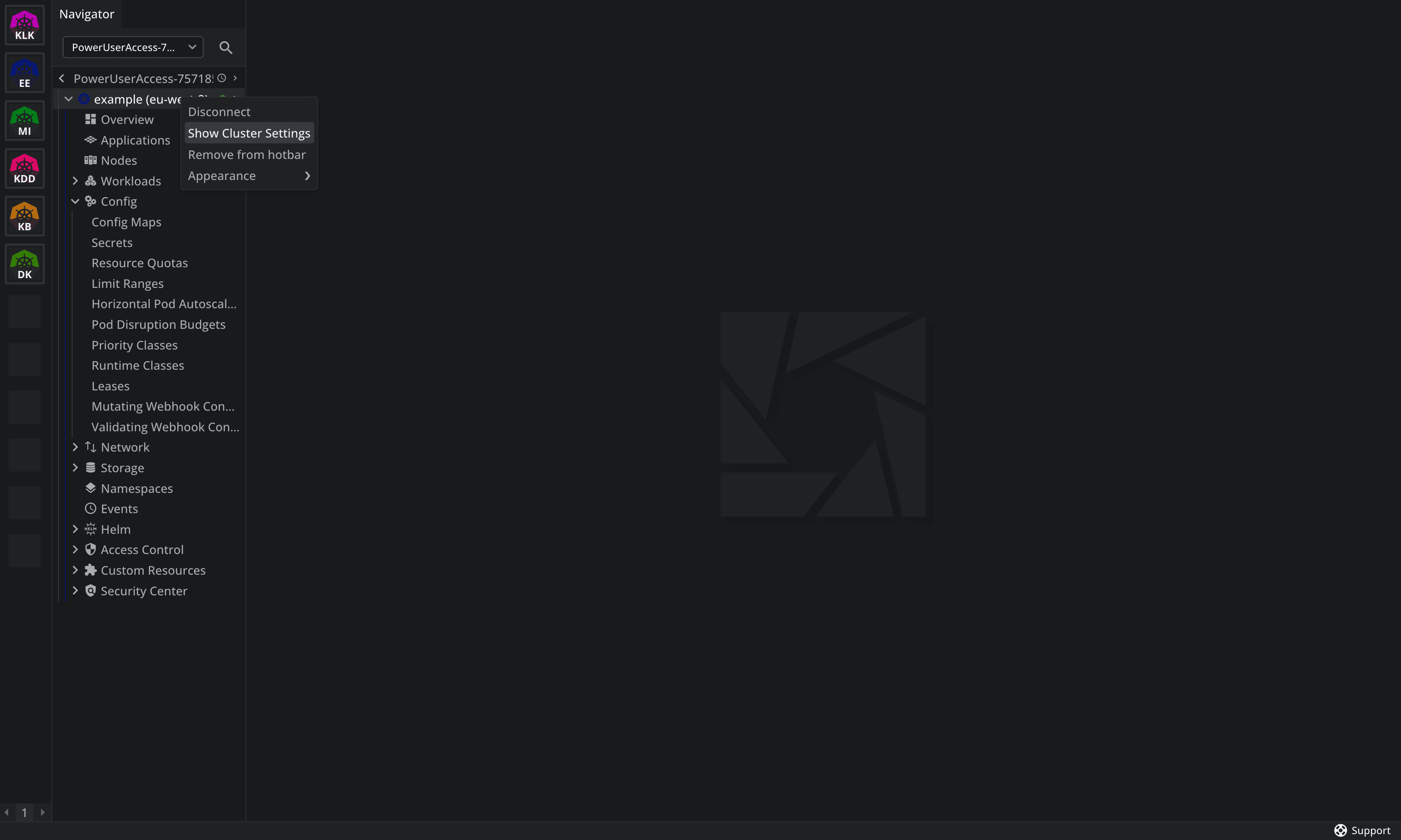
After that, select proxy and set the proxy as follows:
socks5://127.0.0.1:1080
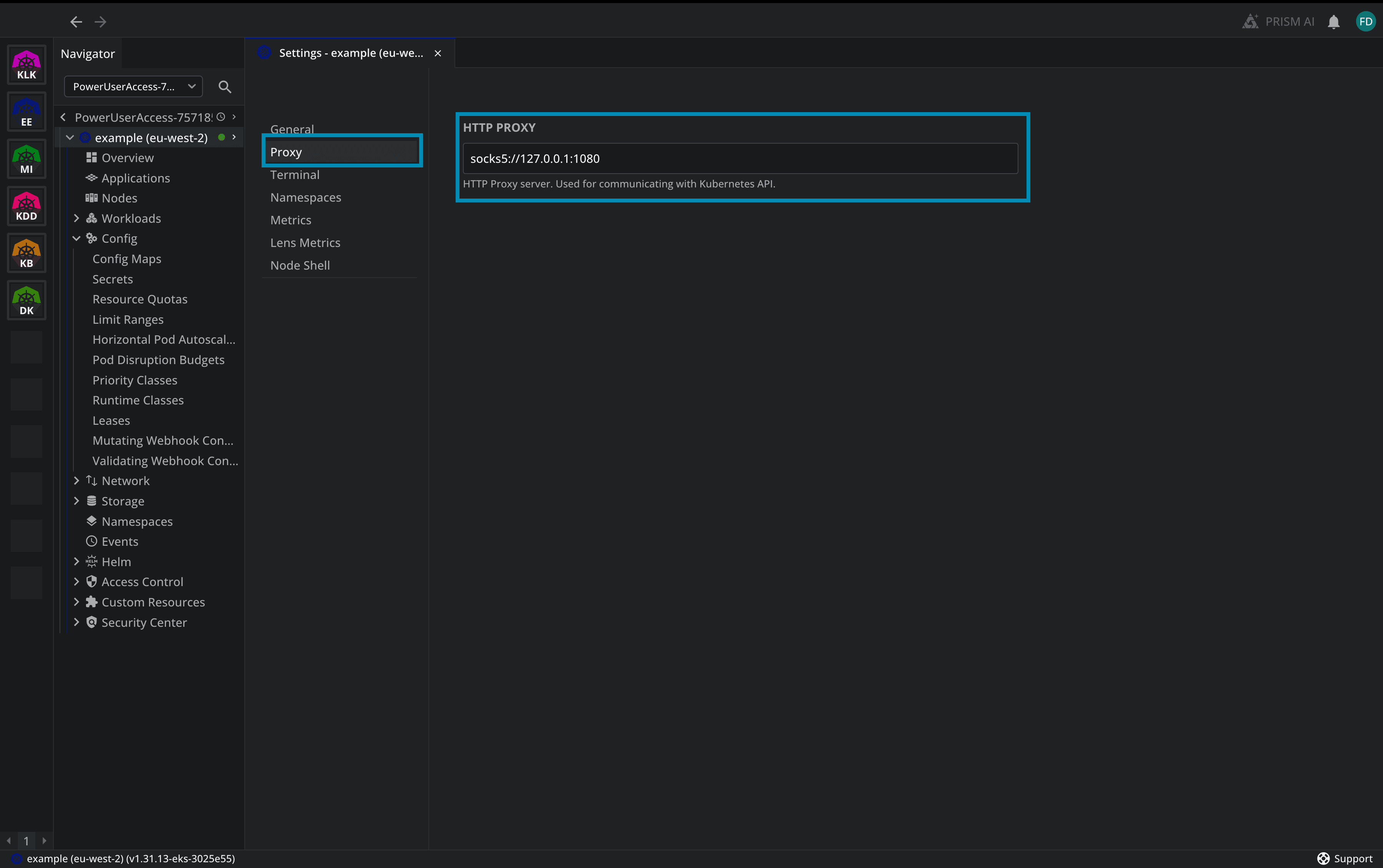
Now, you should have access to your cluster.
By leveraging the SOCKS proxy, your kubeconfig file stays unmodified, and TLS works correctly. A single proxy connection can serve multiple clusters, and even other resources as well. This is the better choice if you are regularly working with multiple private clusters or you need access to other internal services.
How to troubleshoot common issues
Below are some of the most common issues and some things you should explore in order to solve them:
- Connection refused: If you see this message, you should ensure that your SSH tunnel or SOCKS proxy is running. Check the bastion’s security group, and ensure it allows inbound SSH access from your IP address.
- Certificate errors: If you are using the simple SSH tunnel method, you need to use insecure-skip-tls-verify or use the /etc/hosts file workaround. On the other hand, if you are leveraging the SOCKS proxy, you should verify that you are using the original cluster endpoint URL in your
kubeconfig. - Timeout connecting to the cluster: in this case, you should verify the bastion can reach the cluster API. Also check that the cluster’s security groups allow inbound HTTPS from the bastion.
- Proxy not working: confirm that Lens is using the proxy, by checking your environment variables or the Lens settings. On some operating systems, you will need to log out and get back in for proxy changes to take effect
Conclusion
Private Kubernetes clusters are a security best practice, and a bastion host provides the secure access you need without exposing your API server to the internet. You don’t have to choose between keeping your cluster secure and having the full power of Lens, you can easily take advantage of both.
Choose the approach that better suits your workflow, and if you want to understand what else Lens can do for your Kubernetes and AI workflows, book a demo with one of our engineers.