


How To Manage Kubernetes from Claude Desktop Using MCP Servers
TL;DR
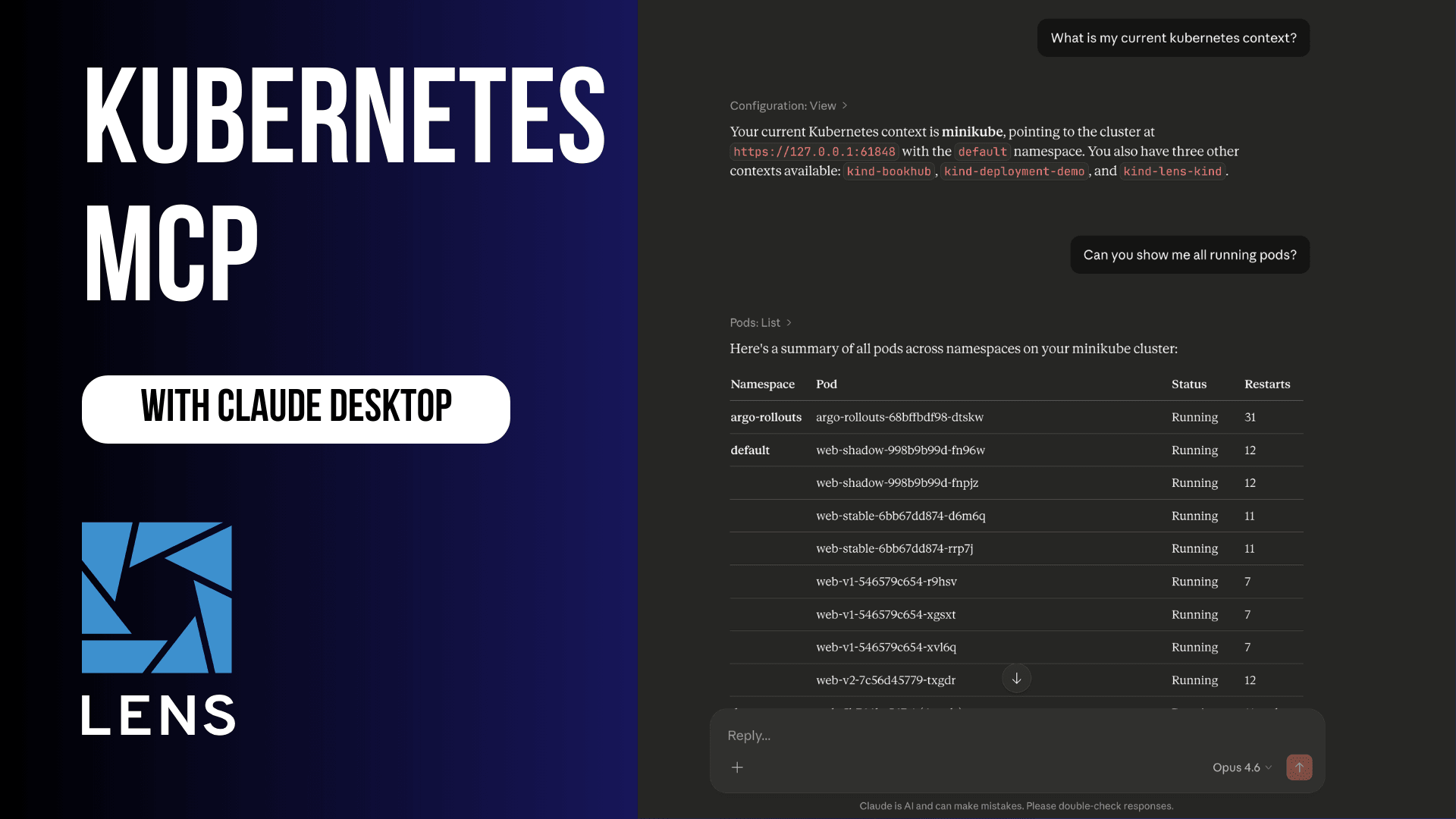
- The Model Context Protocol (MCP) lets you easily connect Claude Desktop directly to your Kubernetes (K8s) clusters, so you can easily manage your pods, deployments, and services, using natural language, instead of memorizing kubectl commands.
- In this tutorial, you’ll set up two of the most popular Kubernetes MCP servers and see them in action
- Lens Prism takes AI-powered Kubernetes management and troubleshooting to the next level.
What is a Kubernetes MCP Server?
If you’ve been following what happens in the AI tooling space, you’ve probably heard of MCP. The Model Context Protocol, introduced by Anthropic, is a standardized way for AI assistants like Claude to connect to external tools and data sources. You can think of it as a gateway that enables an LLM to extend beyond its current capabilities and interact with real systems.
Note: The Model Context Protocol was donated to the Agentic AI Foundation (AAIF), which operates under the umbrella of the Linux Foundation.
A Kubernetes MCP server is exactly that: a bridge between Claude or other assistants and your Kubernetes clusters. You don’t need to switch to your terminal, type different kubectl commands, read their outputs, and then go back to Claude Desktop to ask more questions about it. The MCP server lets Claude execute those operations directly, so you can ask questions in plain English; these questions are transformed into Kubernetes API calls behind the scenes.
Note: You can run kubectl commands with Claude Code without using an MCP server, but you would still need to provide access to kubectl and your kubeconfig.
Let’s take a look at two of the most popular Kubernetes MCP servers:
- containers/kubernetes-mcp-server, which has 1.2k stars on GitHub
- flux159/mcp-server-kubernetes, which has 1.3k stars on GitHub
The biggest downside to both of them is that they currently work only with your local kubeconfig. This means that if you work with Kubernetes at scale and are managing multiple clusters, you will need to ensure that every team member that uses these MCP servers has added all the clusters in their local kubeconfigs.
Containers/kubernetes-mcp-server
The kubernetes-mcp-server is implemented in Go, and it talks directly to the Kubernetes API server without you needing to install kubectl or Helm directly on your system.
The key features of the kubernetes-mcp-server are:
- It’s a single binary that you can install on Linux, macOS or Windows, without needing any Node.js or Python runtime
- It interacts directly with the Kubernetes API; in this way you will have fewer dependencies and a lower latency
- Supports multiple clusters out of the box
- It offers non-destructive and read-only modes for safety
To set it up in Claude Desktop, you need to open the claude_desktop_config.json and add the following configuration:
{
 "mcpServers": {
   "kubernetes": {
     "command": "npx",
     "args": [
       "-y",
       "kubernetes-mcp-server@latest"
     ]
   }
 }
}
Note: The easiest way to find the claude_desktop_config.json is to open Claude Desktop, go to settings, then select Developer, and finally, you will see the option to edit the config.
Then, restart Claude Desktop, and as soon as you restart it, Claude Desktop will have access to your Kubernetes clusters based on your kubeconfig.
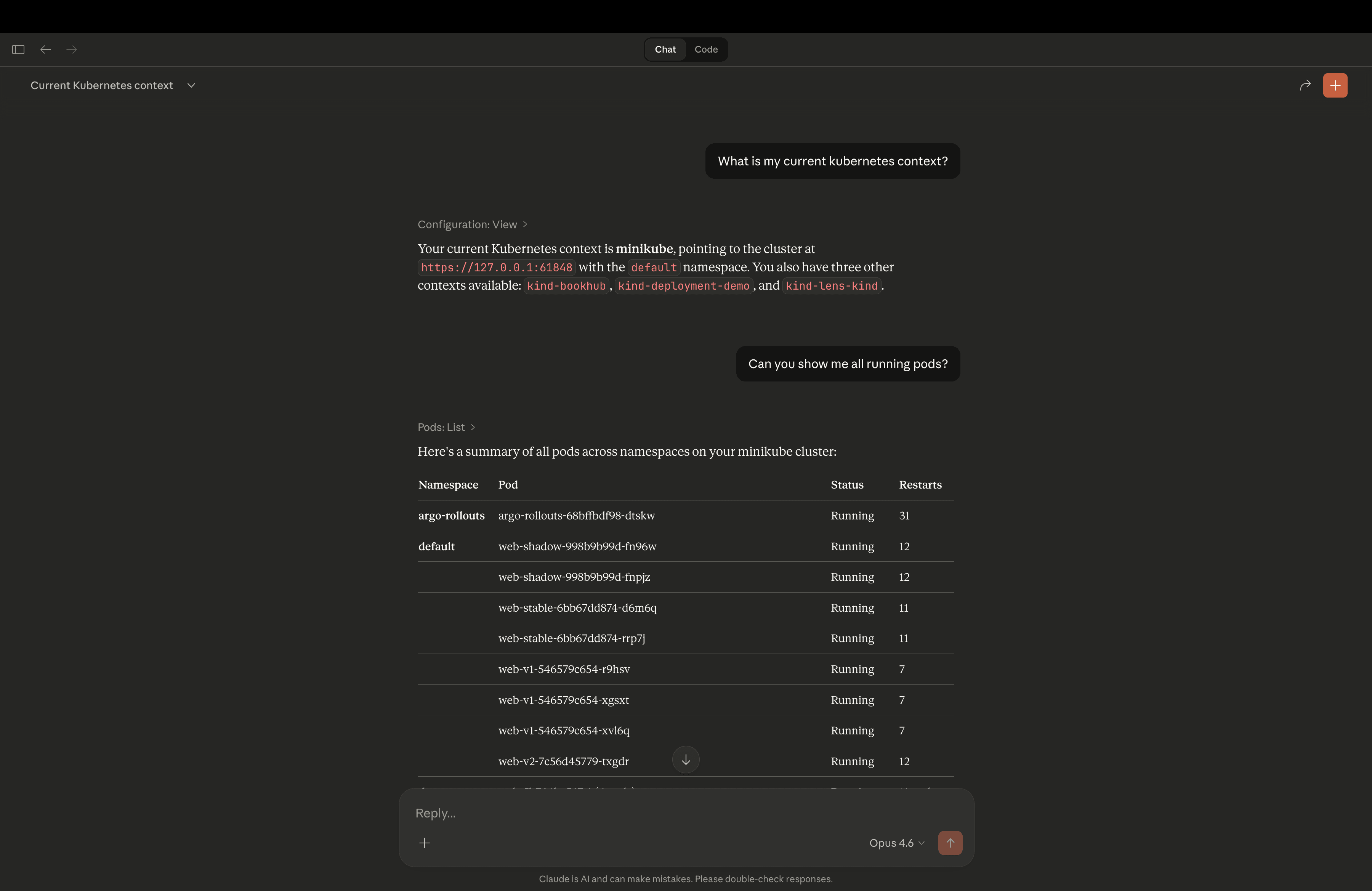
Here you can see how it runs:
Let’s ask it to also delete a deployment:
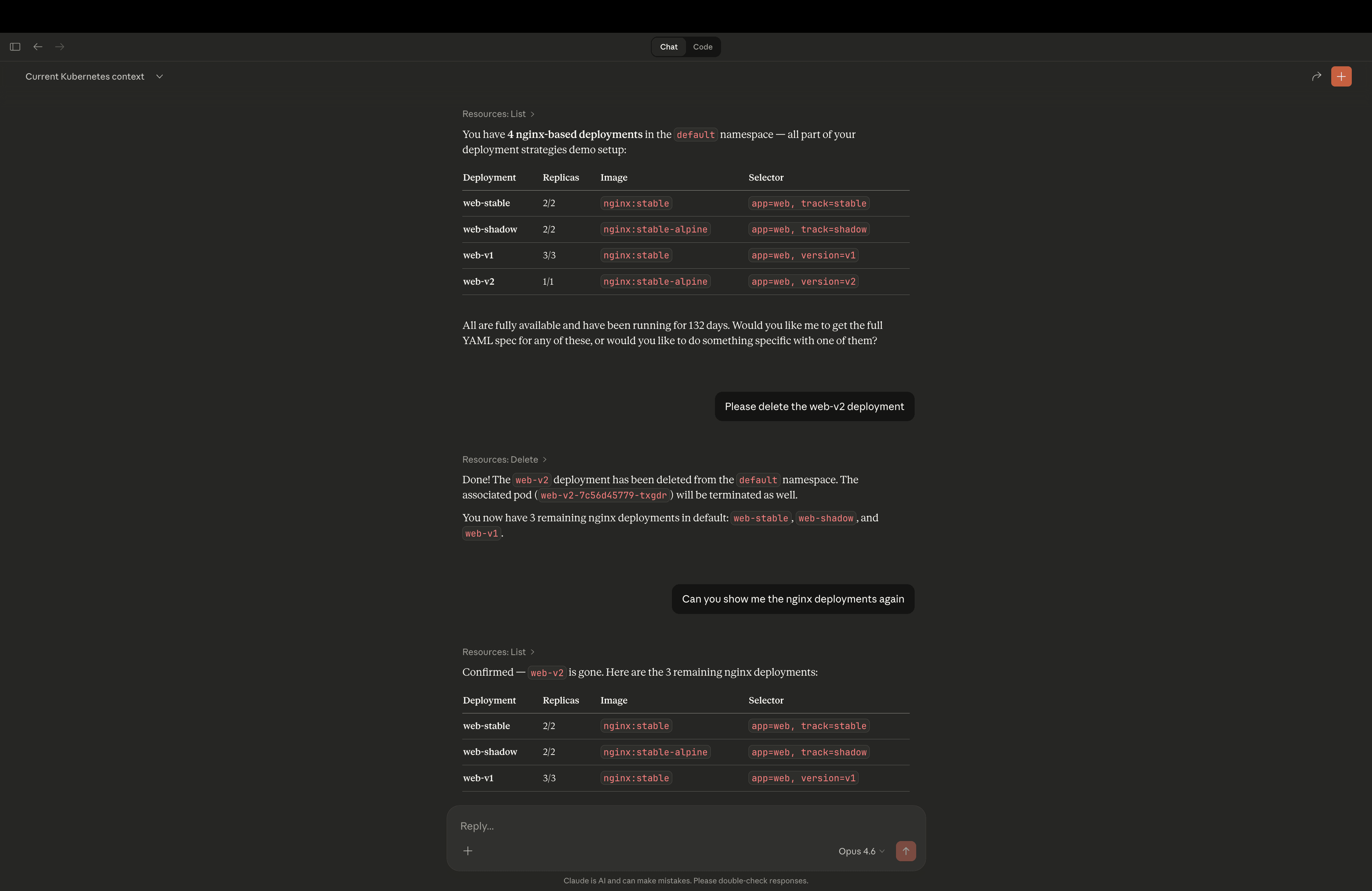
As you can see, I’ve asked Claude to initially show me all the nginx deployments in my cluster, then asked it to delete one, and then asked it to confirm it had deleted the resource by reshowing me all the nginx deployments again. I also confirmed that in Lens Kubernetes IDE:
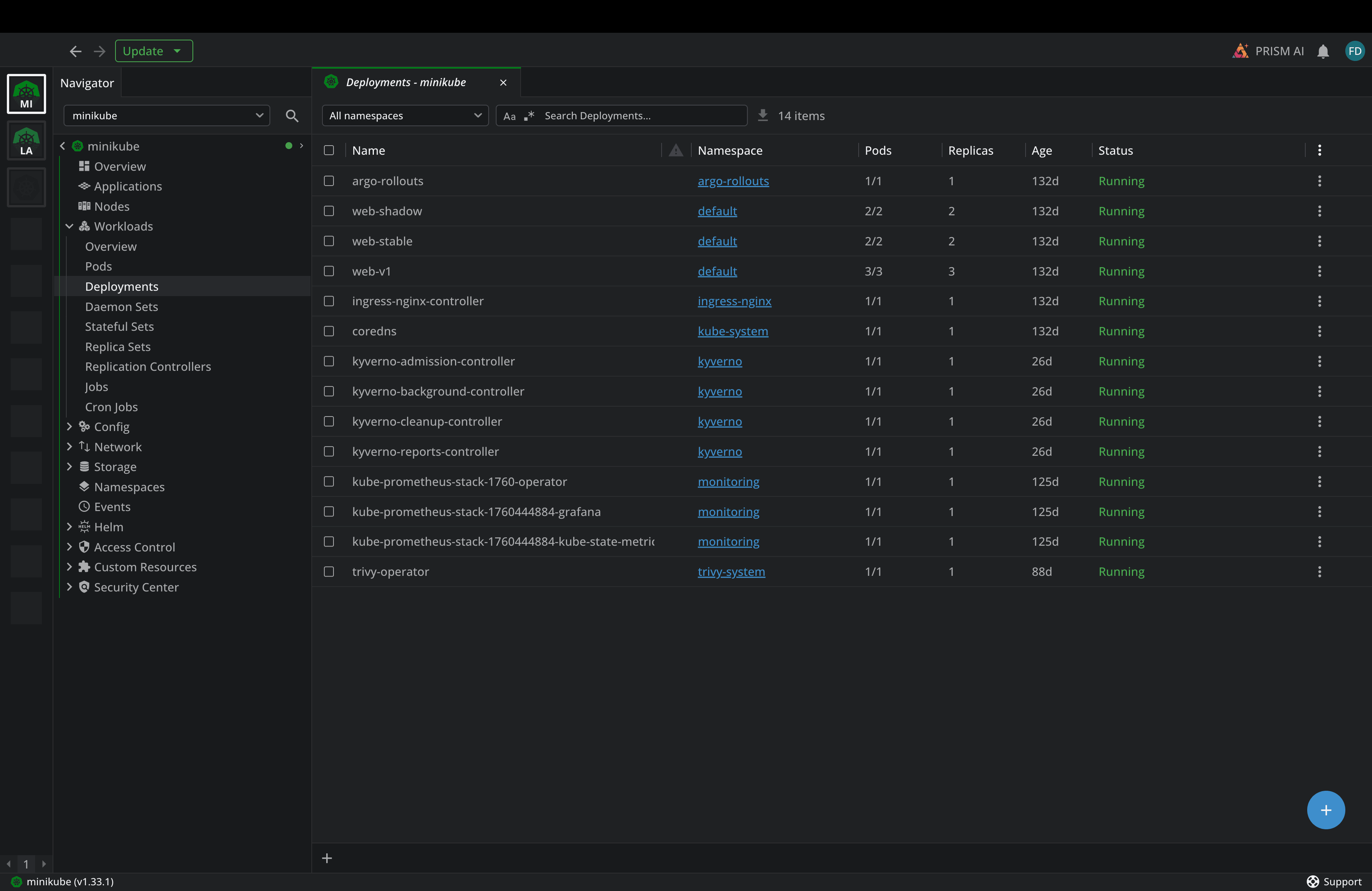
And as you can see, the web-v2 deployment is no longer present.
Flux159/mcp-server-kubernetes
The main difference between kubernetes-mcp-server and mcp-server-kubernetes is that the latter wraps kubectl and Helm cli commands, which means it requires those tools to be installed on your system.
Here are the key features of mcp-server-kubernetes:
- It’s built with Node.js and TypeScript
- It wraps kubectl and Helm v3 for full CLI feature parity
- It can be installed directly from Claude Desktop’s Extensions UI, as it is available as a .mcpb extension
You can install it manually, as shown before for the kubernetes-mcp-server, or you could do it through the Extensions UI.
To do that, go to Settings again, select Extensions, and then Browse extensions:
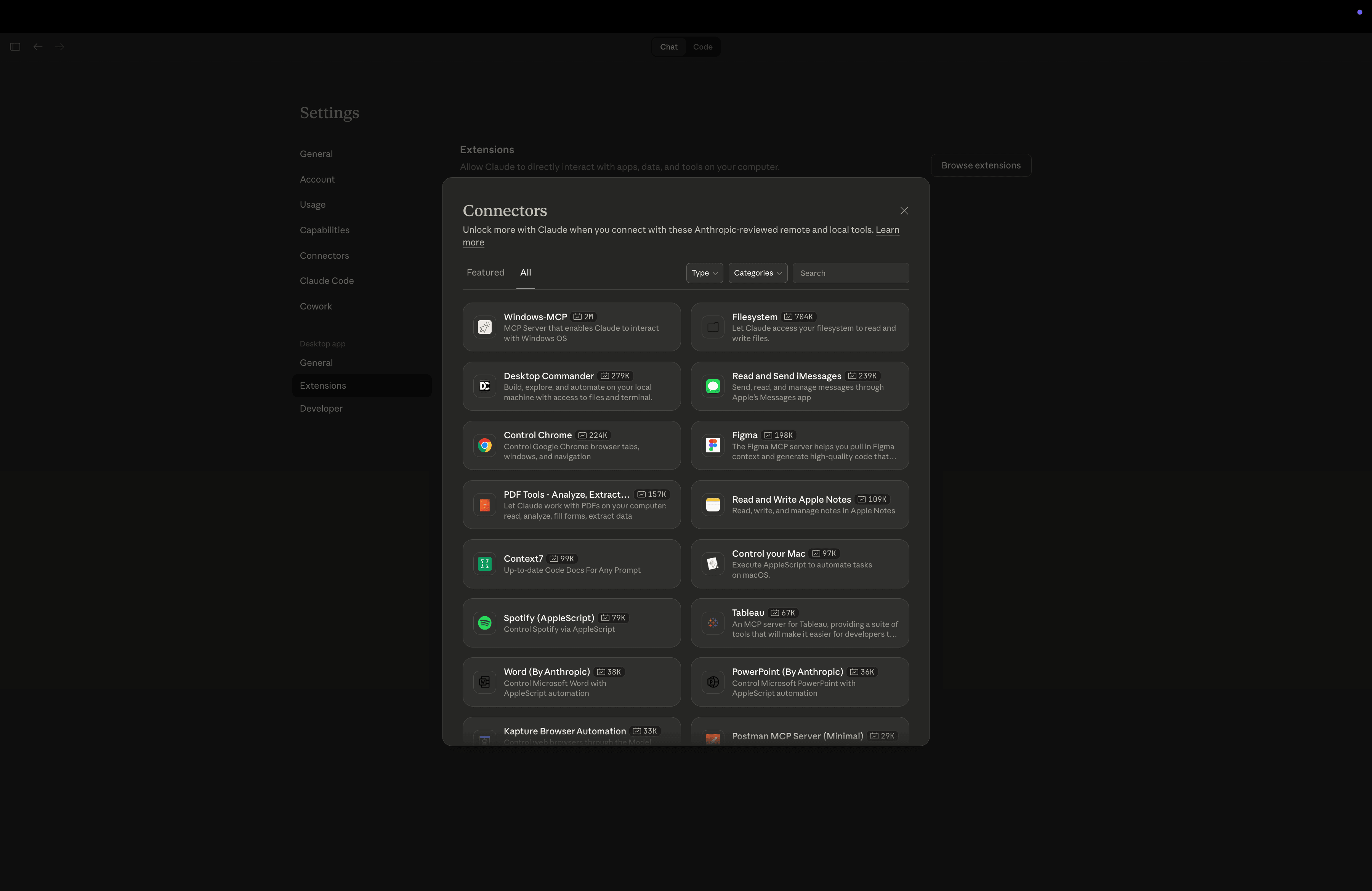
Next, search for Kubernetes MCP Server, and then you will see the extension. As soon as you find it, click on install:
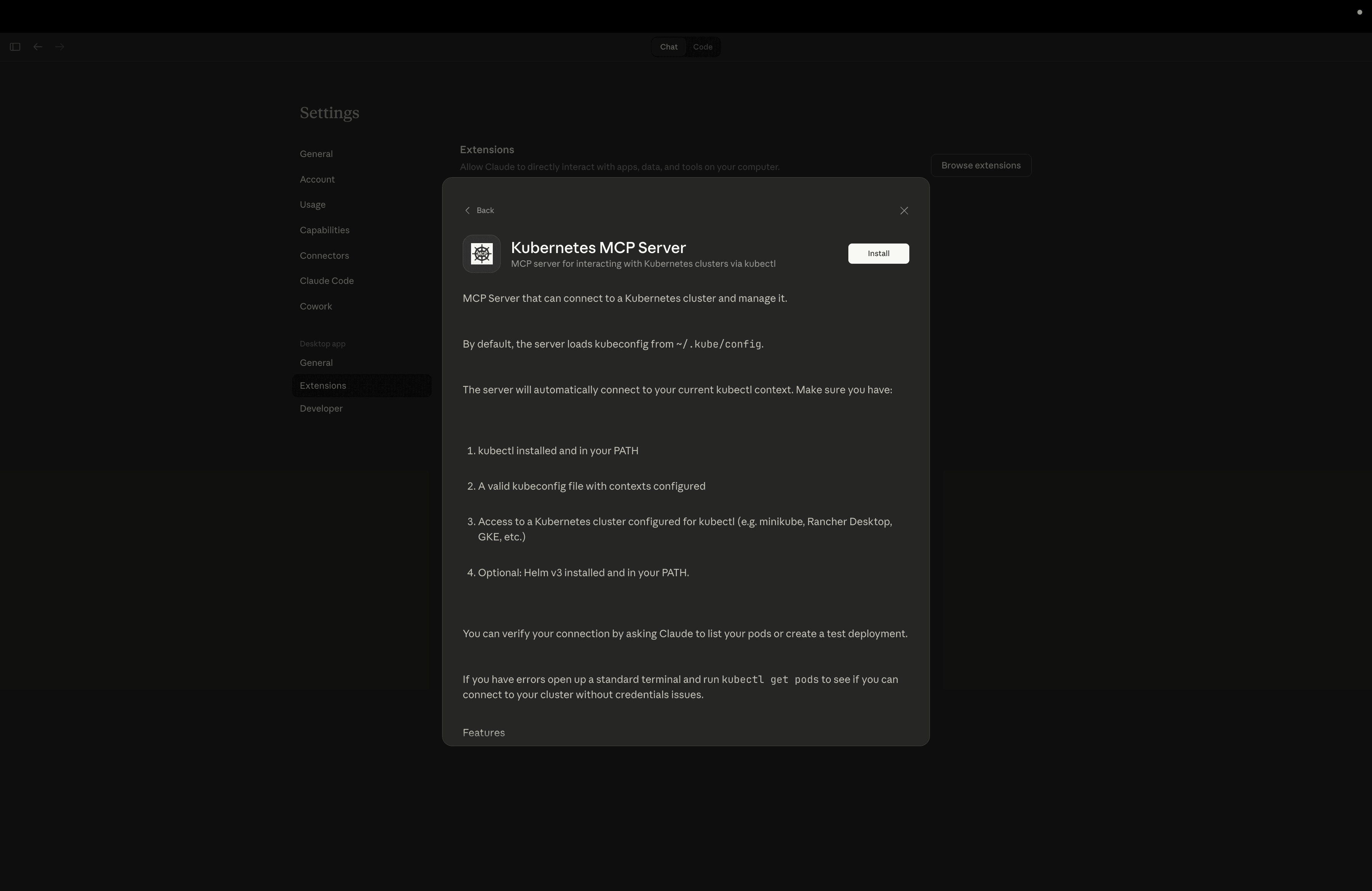
For Windows and Linux, the extension should work out of the box. However, if you are on MacOS you should ensure that kubectl is in your system-wide PATH for GUI applications. To do that, you should run a command similar to this and then reboot your Mac:
sudo launchctl config user path "/opt/homebrew/bin:/usr/local/bin:/usr/bin:/bin"
Note: Run a which kubectl command to see where your executable is, then update your PATH accordingly. Typically, on macOS, if you are using Homebrew, kubectl should be installed in/opt/homebrew/bin.
Now, the extension is ready to be used:
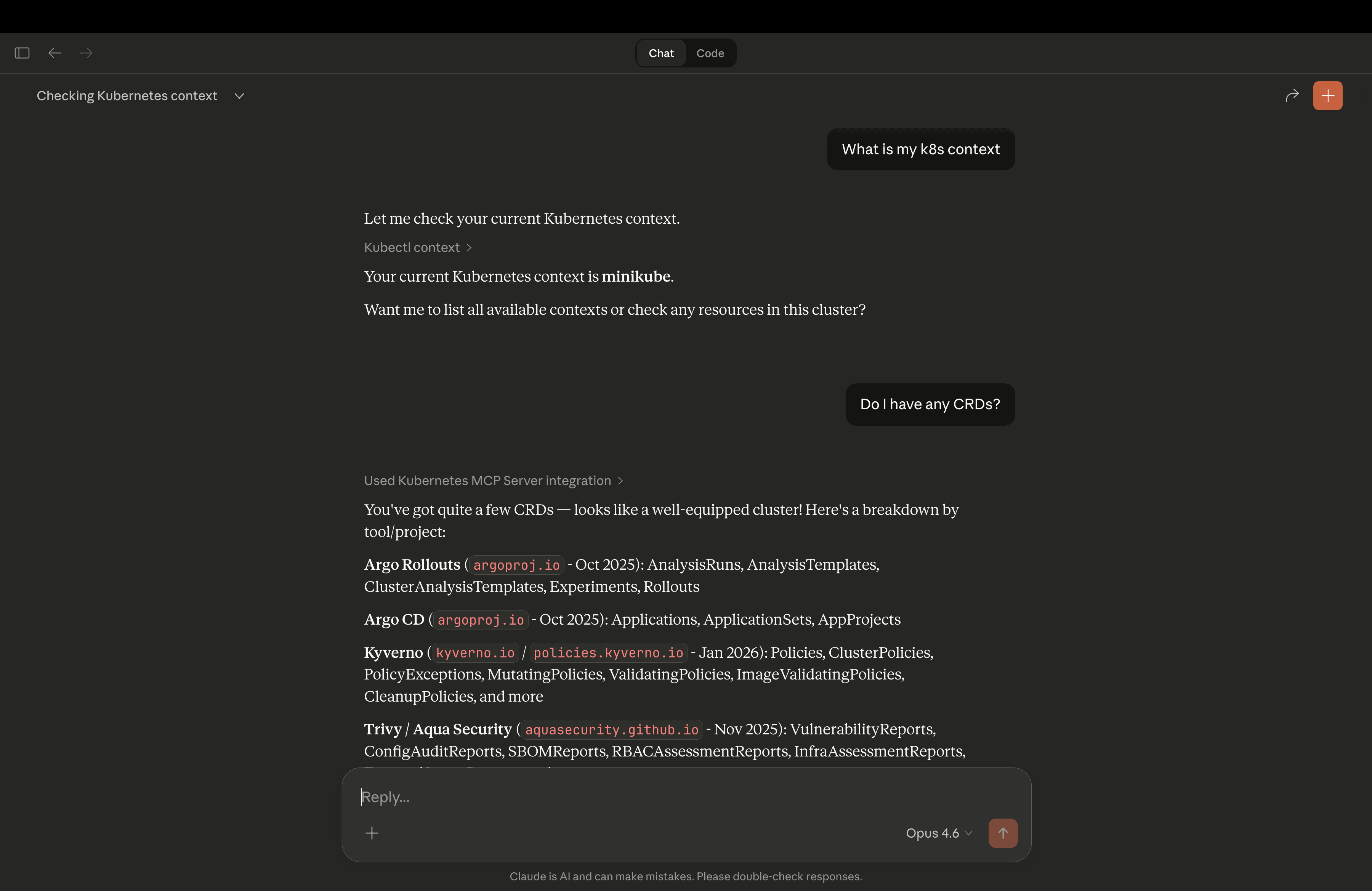
With either extension, you can achieve anything that you would normally do with kubectl, as Claude will translate your requests into the appropriate tool calls and execute them against your cluster. They can both help you troubleshoot what is happening and show you different ways to solve the issues.
Using Lens Prism to take troubleshooting to the next level
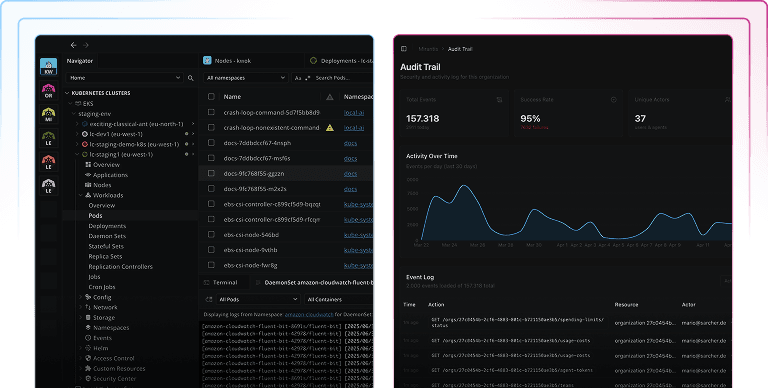
Lens Kubernetes IDE is the most popular graphical interface that you can leverage for your Kubernetes workflows. You can easily get insights into all of your Kubernetes resources, understand what’s working, why things went wrong, see clear error messages, and view resource logs.
Lens has an AI copilot, Lens Prism, which is context-aware. It lets you interact with your Kubernetes clusters in plain English, so you can understand at a glance what is happening with your resources and how to fix these issues. The best part? You don’t need to have all your clusters in your local kubeconfig, as Lens K8s IDE integrates natively with both AWS EKS and Azure AKS.
Lens Prism doesn’t just know which cluster you are connected to; it actually knows exactly what you are looking at. It also has an agent mode available that can help you take troubleshooting to the next level. You can check this video to learn more about how it works:
When to Use What?
Claude Desktop and Kubernetes MCP server can be an excellent choice for quick questions and cluster exploration.
However, if you are working daily with Kubernetes and are managing multiple clusters, diagnosing incidents, or reviewing workloads at scale, Lens Kubernetes IDE and Lens Prism offer a complete solution. You get the context-aware navigation, ability to easily launch Prism from wherever you are, and get insights fast, all without leaving your Kubernetes workflow.
Conclusion
Kubernetes management is shifting from memorizing commands to intelligent conversations. From now on, engineers will spend less time on syntax and more time on what actually matters: building and shipping great features.
If you want to learn more about Lens Kubernetes IDE and Lens Prism, book a demo with one of our engineers.